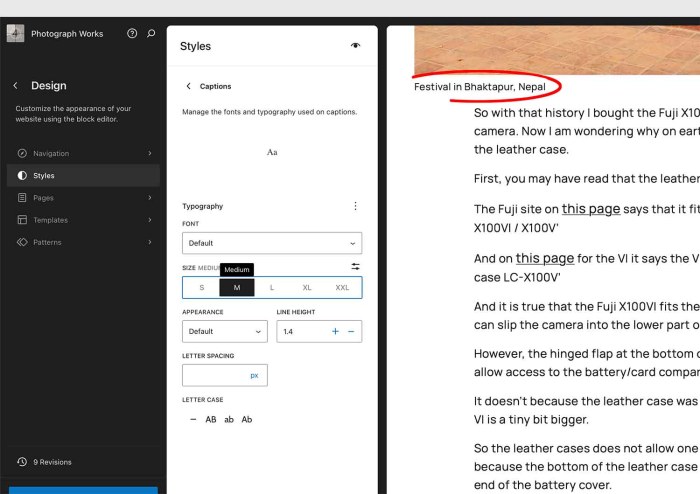
Here’s how to change the font size for the captions on images in the Twenty Twenty-Five theme.
I prefer the text to be smaller than the body text to make it more obvious that it is a caption and not part of the main text.
By default the captions are the same size as the font in the body text.
Go to Editor / Styles / Captions and you can change it there.
I put a red line in this screen capture to show which text I am talking about.
Update
After I gave myself a pat on the back for figuring this out, I looked at the article on my iPhone and the font size of the text for the caption was the same size as the body text.
So I asked WordPress AI support assistant. And after a false start it said that it understood that I was asking about the difference between desktop and iOS mobile display, and that this is a common challenge with responsive design.
The solution it offered was for me to change font size from px to em or rem. In the illustration above you can see a little slider to the right of the ‘Size’ tables.
Click that slider and change from px to rem or em and then set the size. And then go check how it looks.
Some More Thoughts
GUI, or graphical user interface, is a way for a designer to set up a means for the user to interact with the system without having to write code. App icons are a GUI.
Guttenberg is touted as a way to give creative freedom to website owners to change and adjust all parts of their site. That’s why it is called Full Site Editing.
But really, without the developer setting up a GUI for a user to make changes like the ones I have just made – what would I do?
In my case I looked at the code in Firefox and was looking for a way to add CSS. I wasn’t sure what to add (that is usually the case) and more importantly where to add it.
The What And Where Of CSS In FSE
Support answered with what I had guessed but wasn’t sure about – use the ‘Advanced’ section like with the Customiser in non-FSE sites
You’re asking where to paste CSS if you’re using a Full Site Editing (FSE) Block theme that doesn’t have a graphical user interface for typography settings, and you’ve figured out the CSS changes you want to make.
If you’re on an eligible plan that allows adding custom CSS, you can apply CSS to specific blocks site-wide by following these steps:
- Visit your site’s dashboard.
- Navigate to Appearance → Editor.
- Click on the “Styles” menu option.
- Select the “Blocks” section to access settings to customize the appearance of specific blocks for the whole site.
- Click the name of the block you want to add CSS to, or use the search box to locate your desired block type.
- Scroll down to the bottom and click on “Advanced” to add your CSS.

Leave a comment